How to Choose the Best KVM Switch for Dual Monitors

Running multiple computers at a single workstation can get messy—especially when managing separate keyboards, mice, and monitors for each system.
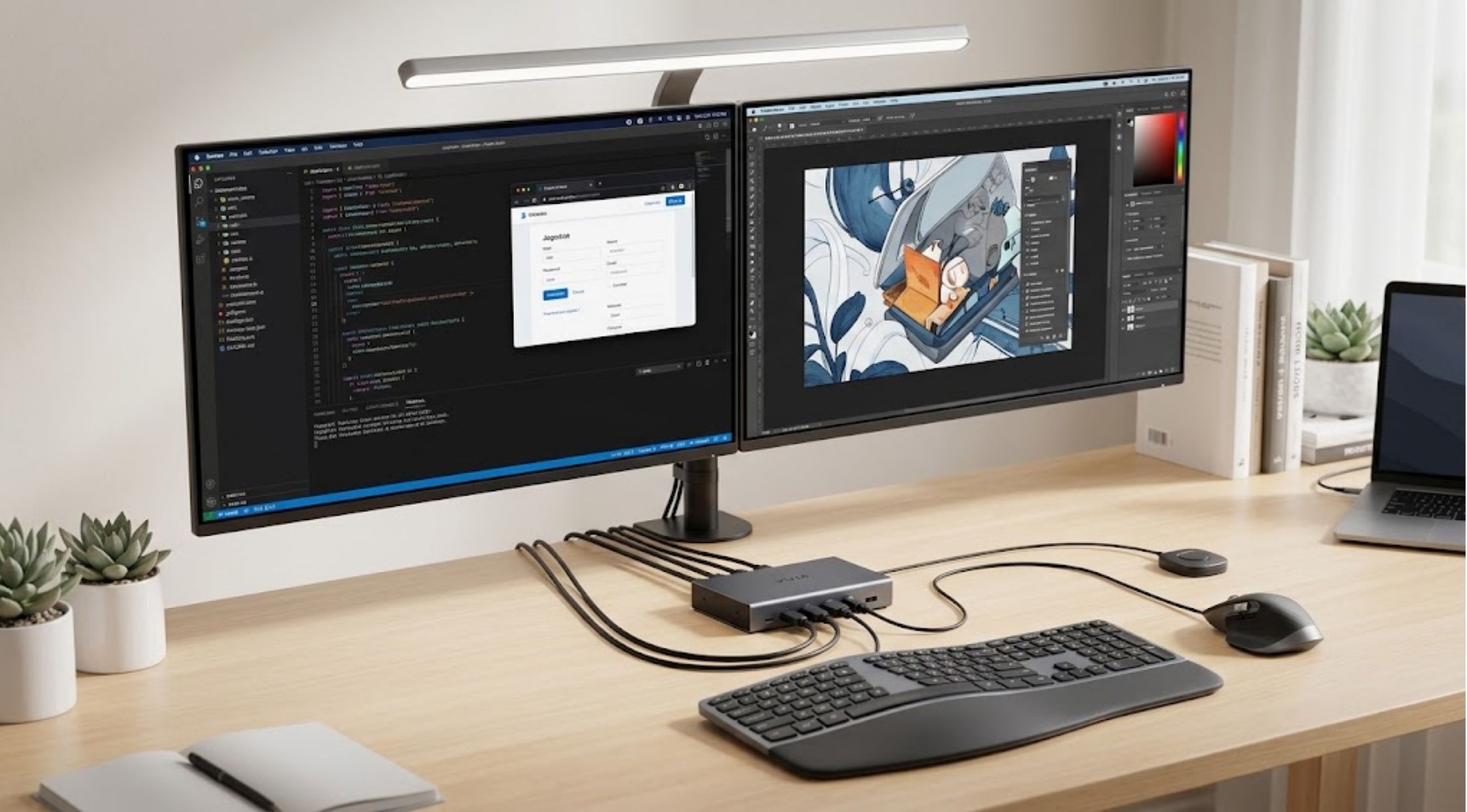
Running multiple computers at a single workstation can get messy—especially when managing separate keyboards, mice, and monitors for each system. A KVM (Keyboard, Video, Mouse) switch solves this by letting multiple computers share one set of displays and peripherals with single-button or hotkey switching.
Whether for a home office, gaming setup, content creation, or IT workstation, understanding KVM features helps you choose the right model and maintain a clean desk space.
What Is a KVM Switch and How Does It Work?
A KVM switch acts as a central hub connecting multiple computers to shared peripherals. Instead of unplugging and re-plugging cables when switching between a work laptop and a personal desktop, the KVM routes signals at the press of a button.
Ideal Use Cases:
- Home offices & remote work
- Software development & IT administration
- Content creation & video editing
- Gaming & multi-system workstations
Key Considerations Before Buying
Finding the right KVM switch starts with assessing your existing hardware and performance requirements.
1. Hardware & Display Specs
- Number of Computers & Monitors: Ensure the switch explicitly supports the exact number of computers you own and dual-monitor output.
- Resolution & Refresh Rate: Match the KVM's bandwidth capacity with your screens. High-refresh-rate gaming monitors or 4K/8K displays require KVMs with higher bandwidth standards (such as DisplayPort 1.4 or HDMI 2.1).
- Video Inputs/Outputs: Verify whether your computers and monitors use HDMI, DisplayPort, or USB-C. Adapters may be required if connections differ.
- Extended vs. Mirrored Displays: Ensure the KVM supports extended desktop mode across both monitors, allowing you to run different applications on each screen for maximum productivity.
2. Connectivity & Compatibility
- USB & Peripheral Support: Check for dedicated ports if you use webcams, external storage drives, audio interfaces, or high-end gaming peripherals.
- Operating System Support: Verify compatibility across Windows, macOS, Linux, and ChromeOS.
How to Set Up a Dual-Monitor KVM Switch
Always refer to your manufacturer's specific instructions, as connection steps vary by model.
- Position the KVM: Place the unit in an easily accessible spot on your desk.
- Connect the Computers: Plug video cables and USB host cables from each computer into the KVM’s computer input ports.
- Connect the Displays: Plug video cables from the KVM’s monitor output ports directly into your two displays.
- Attach Peripherals: Plug your main keyboard and mouse into the dedicated USB ports.
- Power On: Connect the KVM’s power adapter (if required), turn on the monitors, and boot up both computers.
- Test: Toggle between systems to verify display output and input responsiveness.
Computer Switching Methods
KVM switches offer several ways to switch between connected computers:
|
Switching Method |
Best Used For |
|
Keyboard Hotkeys |
Fast, hands-on-keyboard switching without reaching for the physical unit. |
|
Physical Push-Button |
Straightforward, hardware-level control when the unit is within reach. |
|
Wired Remote Button |
Desk-surface access when the main KVM box is mounted underneath a desk. |
|
Software / Auto-Switching |
Hands-free switching triggered by active signal detection or mouse movement. |
Work vs. Gaming: Priorities Compared
|
Feature Focus |
Office & Productivity |
Gaming Setups |
|
Key Priority |
Reliable USB routing & multi-OS support |
Low latency & high refresh rates |
|
Resolution Needs |
Crisp text (4K @ 60Hz) |
High motion clarity (144Hz+) |
|
Peripheral Focus |
Webcams, flash drives, printers |
N-key rollover keyboards, high-DPI mice |
Cable Management & Workspace Setup
A dual-monitor KVM switch drastically cuts down on desk clutter, but clean cable routing keeps your workspace functional and easy to troubleshoot:
- Use cable sleeves or clips to group video and USB cables together.
- Label cable pairs (e.g., "PC1-Display1", "PC1-USB") for fast disconnections.
- Keep video cables away from power bricks to reduce signal interference.
Evaluating Solutions: Brands like AV Access
When searching for reliable dual-monitor setups, brands like AV Access offer dedicated multi-monitor KVM solutions. When evaluating models, match the specific video interface type, supported refresh rates, USB pass-through ports, and switching options directly to your setup's hardware capabilities rather than relying on maximum feature lists alone.
Final Thoughts
Investing in a dual-monitor KVM switch transforms a complex multi-computer desk into a single, streamlined workstation. By verifying your required resolution, refresh rate, video inputs, and peripheral connectivity beforehand, you ensure seamless switching between work, creative tasks, and gaming.