How to Choose the Right Webcam for Clearer Video Calls and Streaming

Maybe your webcam works, but the image quality makes you look unprofessional, or your camera software offers so few controls that improving the picture feels impossible.
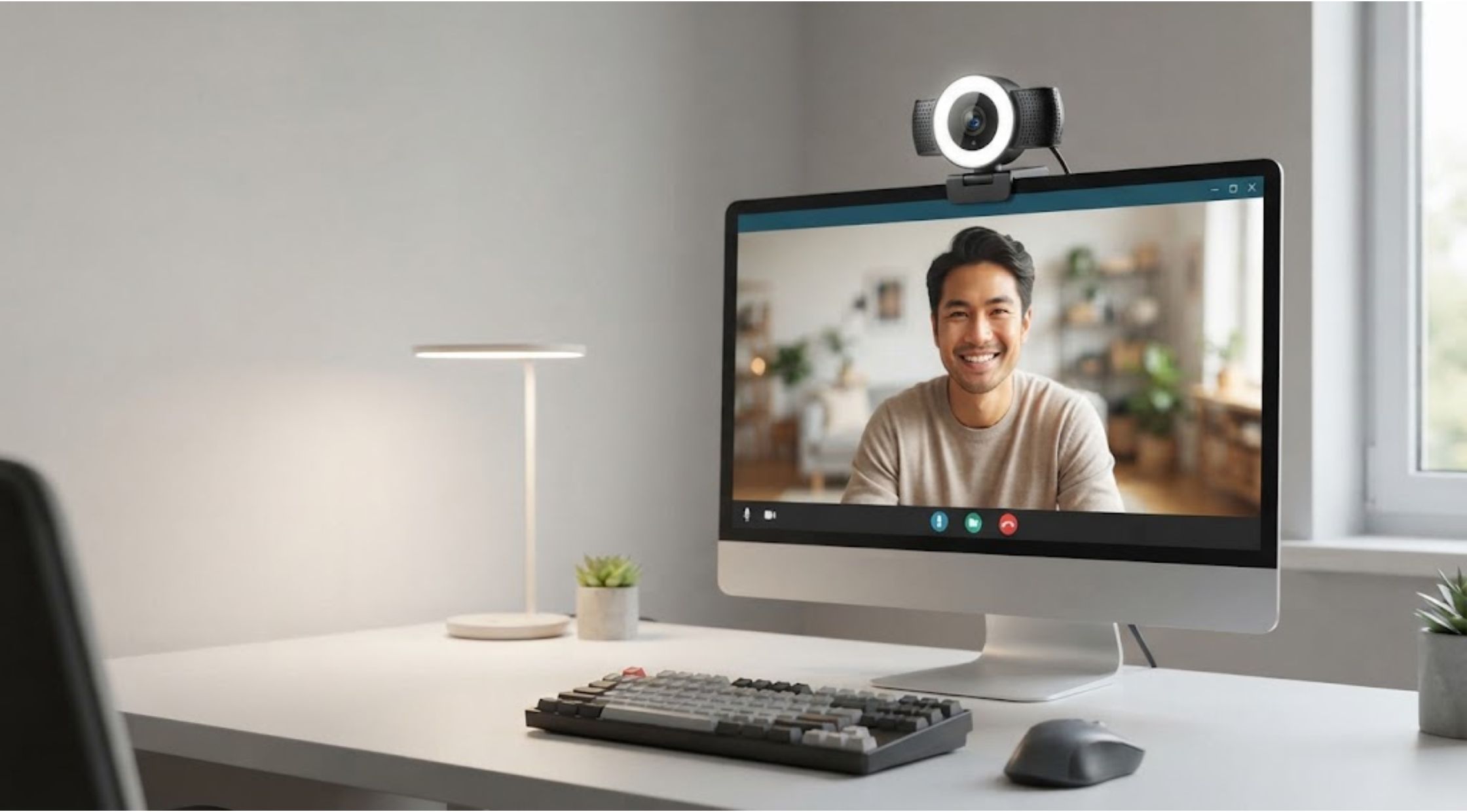
Have you ever joined an important video meeting only to discover that your camera looks grainy, the lighting is poor, or your microphone sounds muffled? Maybe your webcam works, but the image quality makes you look unprofessional, or your camera software offers so few controls that improving the picture feels impossible.
A better webcam can make a noticeable difference. Whether you work remotely, attend online classes, stream content, create videos, or simply want clearer video calls, the right camera can help you look and sound better without requiring a complicated setup.
A NexiGo webcam can be worth considering for users who want a dedicated camera with features designed for modern video communication. However, choosing the right model involves more than simply looking at resolution.
Why Built-In Webcams Don't Always Deliver the Best Results
Laptop webcams are convenient, but they are usually designed to meet basic communication needs rather than provide professional-looking video.
Common problems include:
- Grainy images in low light
- Washed-out or overly dark faces
- Poor framing
- Limited field of view
- Inconsistent autofocus
- Weak microphone performance
- Few controls for adjusting the image
These limitations become more obvious when you spend several hours a week on video calls or create content regularly.
A dedicated webcam gives you more flexibility. You can position it at a better angle, choose a model with a wider field of view, and potentially gain access to features that are unavailable with a basic built-in camera.
What Actually Makes a Webcam Good?
Not every webcam feature is equally important. A camera with a high resolution may still produce disappointing results if its sensor, lens, autofocus, or image processing is poor.
Resolution Matters, But It Isn't Everything
A 1080p webcam can provide sharp video for everyday meetings, while higher-resolution options may be useful for content creators, streamers, or users who want additional cropping flexibility.
However, resolution should be considered alongside lighting performance and image processing.
A camera that produces a clean, well-exposed 1080p image can be more useful than a higher-resolution camera that struggles in typical indoor lighting.
Autofocus Can Improve Convenience
If you move around during meetings, presentations, or recordings, autofocus can help keep your face clear.
This is especially useful for people who switch between sitting close to the camera and moving farther away.
Field of View Is Important
A narrow field of view can work well for individual meetings, while a wider angle may be useful for presentations, group calls, or showing more of your workspace.
Consider how you normally use your camera before choosing the widest option available.
Common Webcam Problems and How to Fix Them
Poor Lighting
Even an excellent webcam can struggle in a dark room.
Try positioning a light in front of you rather than directly behind you. Natural window light can also work well, provided the window is not directly behind your head.
A simple desk lamp with a soft, diffused light may improve your video significantly.
Unflattering Camera Angle
Camera placement can affect how professional your video looks.
Place the camera close to eye level rather than pointing sharply upward or downward. If your laptop camera sits too low, raising the laptop or using an external webcam can create a more natural perspective.
Distracting Backgrounds
Your background is part of your video presentation.
Keep the area behind you relatively clean, or use your video conferencing software's background tools when appropriate.
Poor Microphone Quality
Clear audio is just as important as video. Viewers may tolerate slightly lower video quality, but consistently difficult-to-understand speech can quickly become frustrating.
Before buying, check whether the webcam includes built-in microphones and review the specifications to understand what they are designed to handle.
How NexiGo Webcam Software Can Help
Hardware is only one part of the webcam experience. Software controls can also make a difference.
NexiGo webcam software may provide additional control over compatible camera settings, depending on the model. Features and compatibility can vary, so users should check the software and product documentation for their specific webcam.
Adjustments such as brightness, contrast, exposure, white balance, and other image settings can be useful when the default picture does not match your room or lighting conditions.
For example, if your face appears too dark, adjusting exposure may help. If colors look unnatural, white balance settings can sometimes improve the result.
The important point is to avoid excessive adjustments. A natural-looking image is generally more effective than an overly bright or heavily processed one.
Practical Tips for Better Video Calls
You do not necessarily need expensive equipment to improve your video quality.
Position Your Camera Correctly
Keep the lens close to eye level and avoid placing it too far away. This helps create a natural composition.
Improve Your Lighting
Use a light source facing you whenever possible. Avoid strong light directly behind you because it can cause your face to appear dark.
Keep the Lens Clean
Dust and fingerprints can soften an image. Wipe the lens gently with a suitable microfiber cloth when necessary.
Check Your Settings Before Important Calls
Open your meeting software before an important presentation and confirm the correct camera and microphone are selected.
Test Your Background
A clean, uncluttered background helps keep attention on you rather than your surroundings.
When Upgrading to a Premium Webcam Makes Sense
If you only make occasional video calls, your laptop camera may be sufficient. But frequent users can benefit more from a dedicated webcam.
Consider upgrading if you:
- Work remotely
- Attend frequent online meetings
- Create YouTube or social media content
- Stream games or other content
- Teach online
- Participate in interviews
- Want better image quality for professional calls
A NexiGo webcam can be a practical option for people who want a dedicated camera without building an unnecessarily complicated recording setup.
Rather than buying based only on resolution, consider the complete experience: image quality, autofocus, microphones, field of view, mounting options, software compatibility, and ease of use.
Benefits of Choosing a Better Webcam
More Professional Video
A clearer and better-balanced image can make video meetings and presentations feel more polished.
Greater Flexibility
An external webcam can be positioned independently of your laptop, giving you more control over framing.
Better Content Creation
Creators can benefit from improved video quality when recording tutorials, livestreams, product demonstrations, or social content.
More Control
Compatible NexiGo webcam software can give users additional options for adjusting supported camera settings instead of relying entirely on automatic controls.
Less Frustration
When your camera consistently produces a usable image, you spend less time troubleshooting and more time focusing on the conversation or content.
How to Choose the Right NexiGo Webcam
Before purchasing, consider how you actually use your camera.
Ask yourself:
- Do I need 1080p or higher resolution?
- Will I use it mainly for meetings or content creation?
- Do I need autofocus?
- Is a wide field of view important?
- Do I need built-in microphones?
- Will I use camera adjustment software?
- Does my desk setup support an external webcam?
- Is the camera compatible with my computer and preferred applications?
These questions can help you avoid paying for features you will never use.
Conclusion: Make Your Video Setup Work Better
A webcam may seem like a small part of your computer setup, but it can have a significant effect on how you communicate online. Better framing, lighting, image quality, and audio can make meetings, presentations, classes, and content creation feel much more professional.
If your built-in camera is holding you back, exploring a NexiGo webcam may be a practical next step. For users who want additional control, checking the available NexiGo webcam software for compatible models can also help fine-tune the experience.
The smartest upgrade is not necessarily the camera with the longest feature list. Choose one that fits your routine, works with your equipment, and solves the specific problems you experience. That way, your webcam becomes a useful everyday tool rather than another piece of technology you have to constantly troubleshoot.