How to Fix Screen Flickering and Build a Better Dual-Monitor Setup

Even a minor display problem can quickly become frustrating, especially when you rely on multiple monitors for work, gaming, design, or productivity.
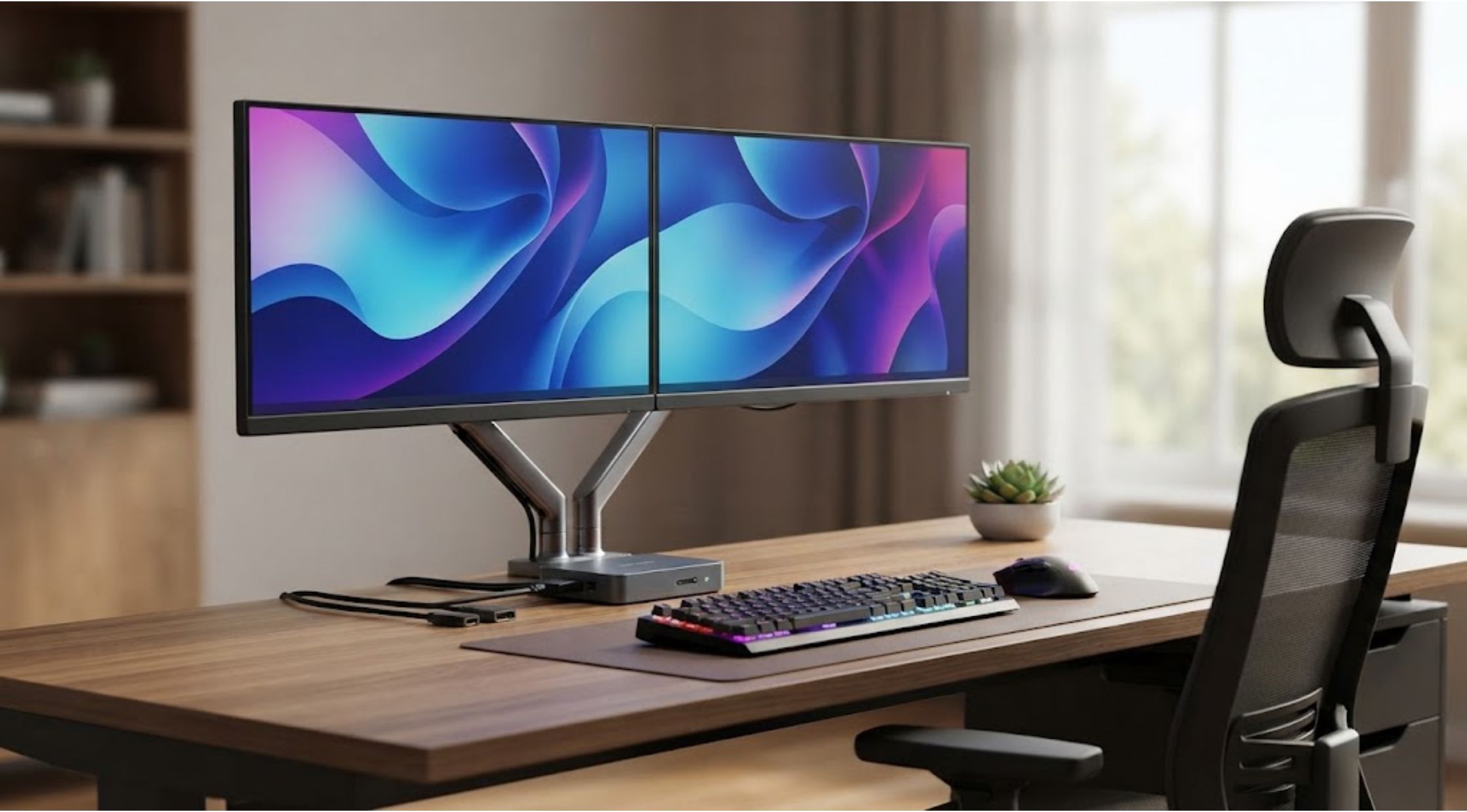
Have you ever been working on an important project when your monitor suddenly flashes, goes black for a second, or starts screen flickering repeatedly? Even a minor display problem can quickly become frustrating, especially when you rely on multiple monitors for work, gaming, design, or productivity.
Screen flickering is not always caused by a faulty monitor. Loose cables, incorrect refresh rates, outdated drivers, incompatible resolutions, power issues, and switching hardware can all contribute to an unstable display.
If you also use multiple computers with two monitors, the problem can become more complicated. A properly configured KVM switch dual monitor setup can simplify switching between systems while keeping your workspace organized—but choosing compatible hardware is essential.
Why Does Screen Flickering Happen?
Before replacing your monitor, it is worth identifying the actual cause.
Common reasons for screen flickering include:
- Loose or damaged display cables
- Incorrect refresh-rate settings
- Outdated graphics drivers
- Incompatible resolution settings
- Faulty adapters or docking stations
- Unstable power connections
- Monitor compatibility problems
- Poor-quality switching equipment
Sometimes the solution is surprisingly simple. Reseating a cable or changing the refresh rate can resolve the issue within minutes.
However, persistent flickering should not be ignored. If the problem continues across different cables, computers, or inputs, the monitor or another component may require further investigation.
How to Troubleshoot Screen Flickering
Check Your Display Cables
Start with the simplest possibility.
Disconnect and reconnect your HDMI, DisplayPort, USB-C, or other display cables. Make sure each connection is firmly seated.
If possible, test with another cable. A damaged or low-quality cable may work intermittently and create random flickering, black screens, or signal drops.
For a dual-monitor setup, test each monitor independently. This can help determine whether the issue is specific to one display or affects the entire system.
Check the Refresh Rate
Your computer may automatically select a refresh rate that does not work properly with your monitor or connection.
Open your display settings and confirm that the selected refresh rate is supported by the monitor. If you recently changed resolution, installed a new graphics card, or connected a new display, check these settings again.
Update Graphics Drivers
Outdated or corrupted graphics drivers can also cause display instability.
Check for the latest drivers from your graphics hardware manufacturer and restart your computer after installation. If the problem began immediately after a driver update, rolling back to a previous stable version may also be worth considering.
Test One Monitor at a Time
If you use two displays, disconnect one and test the other.
If the flickering disappears, reconnect the second monitor and test different ports or cables. This process can help identify whether the problem is related to a particular display, port, cable, or configuration.
Managing Two Computers With Two Monitors
A different challenge appears when you regularly use multiple computers.
For example, you might have:
- A work computer
- A personal desktop
- Two monitors
- One keyboard
- One mouse
- Several USB accessories
Without the right equipment, switching between systems can mean repeatedly changing cables or managing several sets of peripherals.
A KVM switch dual monitor configuration is designed to simplify this process. KVM stands for Keyboard, Video, and Mouse, allowing users to control multiple computers through shared peripherals.
Instead of manually disconnecting your monitors and accessories, a suitable KVM can let you switch between connected systems using a button, hotkey, or other control method, depending on the model.
What to Look for in a Dual-Monitor KVM Switch
Not every KVM switch supports the same video standards or resolutions. This is one of the most important considerations before buying.
Check Monitor Resolution
If you use 4K monitors, make sure the KVM supports the resolution and refresh rate you need.
For example, a switch designed for basic 1080p displays may not be appropriate for a high-resolution workstation.
Check the Number of Monitor Outputs
A dual-monitor setup requires a KVM designed to handle two displays simultaneously.
Confirm the exact input and output configuration before purchasing. The terms “dual monitor” and “dual display” should not be assumed to mean that every connected computer can automatically support the same configuration.
Consider the Video Connections
Check whether your monitors use HDMI, DisplayPort, USB-C, or another connection.
You may need adapters if the ports on your computer and KVM do not match. However, adding multiple adapters can introduce another potential point of failure, so a direct connection is generally preferable when possible.
Check USB Peripheral Support
If you want to share a keyboard, mouse, webcam, storage device, or other USB accessories, check how many USB ports the KVM provides and which USB standard it supports.
How a Premium KVM Can Improve Your Workspace
Once the basic compatibility requirements are covered, a higher-quality KVM can make a multi-computer workstation significantly easier to manage.
TESmart, for example, offers KVM solutions designed around multi-display and multi-computer environments. Depending on the model, users can find support for different resolutions, refresh rates, USB peripherals, and switching methods.
The goal is not simply to add another device to your desk. A good KVM should reduce cable clutter and make switching between computers feel almost effortless.
For professionals who frequently move between a work laptop and desktop, a properly selected KVM switch dual monitor setup can be particularly useful.
Benefits of Upgrading Your Display Setup
Less Cable Management
Instead of constantly disconnecting and reconnecting displays and peripherals, a KVM can centralize the connections.
Faster Switching
Switching between systems becomes easier when your monitors and shared accessories are already connected.
Better Productivity
Two monitors can provide more workspace for documents, spreadsheets, communication tools, design software, or other applications.
A Cleaner Desk
Reducing the number of loose cables and peripheral devices can make your workstation feel more organized.
More Consistent Performance
A quality switching solution can help create a more stable setup when the hardware is properly matched to your monitors and computers.
TESmart can be worth exploring for users building a more advanced multi-monitor workstation, particularly when display resolution, connectivity, and peripheral sharing are important considerations.
How to Prevent Future Display Problems
Once your setup is working correctly, a few habits can help prevent future issues.
Keep Cables Secure
Avoid placing heavy objects on display cables or bending them sharply.
Avoid Unnecessary Adapters
Every additional adapter or converter can introduce another possible failure point.
Keep Drivers Updated
Regularly check graphics and operating-system updates, particularly after installing new hardware.
Match Your Hardware
Before purchasing a KVM, monitor, docking station, or cable, check that each component supports the resolution, refresh rate, and connection type you need.
Test Changes One at a Time
If you experience screen flickering, avoid changing several settings simultaneously. Make one adjustment, test the system, and then move to the next. This makes troubleshooting much easier.
Conclusion: Build a Display Setup You Can Rely On
Persistent screen flickering can be frustrating, but the problem is often fixable once you identify whether the cause is the cable, monitor, settings, graphics hardware, or switching equipment.
For users running multiple computers and displays, a properly selected KVM switch dual monitor solution can also simplify everyday work by reducing cable swapping and making system switching more convenient.
Before upgrading, check your monitors, resolutions, refresh rates, ports, and computer requirements. If you need a more streamlined multi-display workspace, exploring solutions from TESmart may help you find hardware that matches your setup.
The best workstation is not necessarily the one with the most equipment. It is the one where every component works together reliably, allowing you to focus on your work instead of troubleshooting your screen.