How to Connect a Nintendo Switch to a TV Without a Dock

Or perhaps you want a smaller and more portable setup without carrying the original dock everywhere.
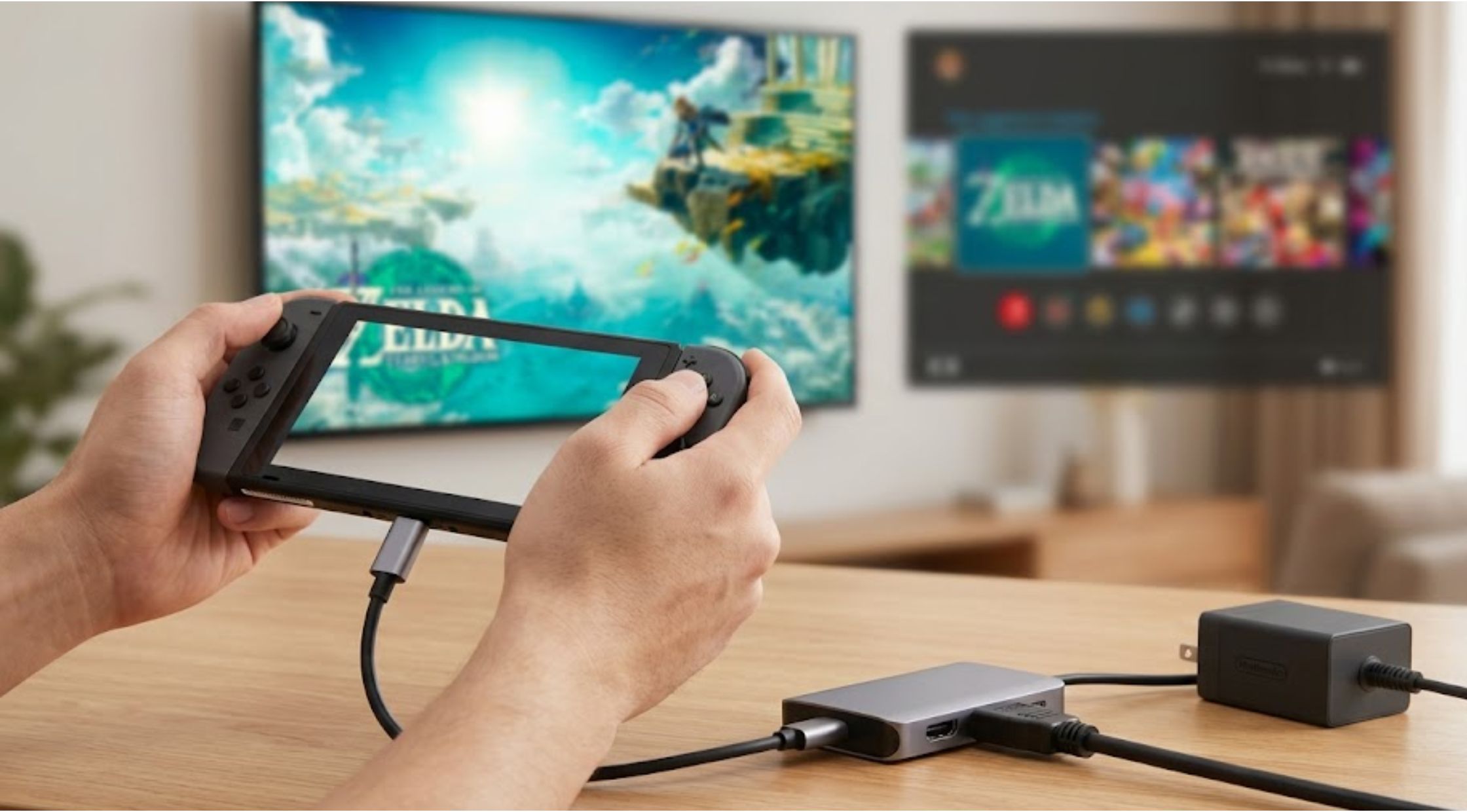
Have you ever packed your Nintendo Switch for a trip, arrived at your destination, and realised that the dock was left at home? Or perhaps you want a smaller and more portable setup without carrying the original dock everywhere.
Many Nintendo Switch users search for how to connect Switch to TV without dock because the standard dock can take up space and may not be convenient for travel. A compact adapter can seem like a simple solution, but connecting a console to a television involves more than plugging in a cable.
You need to understand the correct USB type, video output support, power requirements, and compatibility between your Switch, display, and accessories.
This blog explains how dock-free TV connections work, what problems users commonly face, and how to choose a reliable setup for gaming at home or while travelling.
Why Connecting a Switch Without a Dock Can Be Difficult
The Nintendo Switch is designed to work with its official dock, which manages power delivery and sends video to a television. When the dock is removed, users may assume that any USB-C hub will provide the same result.
Unfortunately, not every adapter supports video output or provides the correct power connection.
The TV Shows a Black Screen
A common problem is connecting the Switch to an adapter and seeing no image on the television.
This may happen because the adapter does not support video output, the HDMI cable is damaged, or the TV is set to the wrong input.
The Switch Does Not Charge
Some adapters provide only basic USB connectivity. They may allow accessories to connect but may not supply enough power for stable TV mode.
A compatible power source is an important part of learning how to connect Switch to TV without dock.
Confusion About USB Ports
USB connectors can look similar while supporting different functions. A USB-C connector may support charging, data transfer, video output, or a combination of these features.
The physical shape alone does not confirm what the port can do.
Too Many Accessories
Using separate adapters, chargers, cables, and hubs can create a cluttered gaming setup. It may also make travel less convenient.
A compact multi-function adapter can reduce the number of accessories you need to carry.
Understanding Port USB Type and Compatibility
The term port USB type can refer to the shape of a connector, such as USB-A, USB-C, Micro-USB, or other formats. However, connector shape is only one part of compatibility.
USB-C is widely used because it is compact, reversible, and capable of supporting several functions. Depending on the device and accessory, a USB-C connection may carry power, transfer data, or support video output.
For a dock-free Nintendo Switch setup, look for an adapter designed to support:
- USB-C connection to the Switch
- HDMI video output
- Compatible power delivery input
- Stable performance during gaming
- Appropriate USB ports for accessories, if needed
Do not assume that every USB-C hub will work with every device. Review the manufacturer’s compatibility information before purchasing.
How to Connect Switch to TV Without Dock
The exact setup may vary depending on your adapter, television, and Switch model. However, the general process is straightforward.
Step 1: Use a Compatible USB-C Adapter
Connect a compatible USB-C-to-HDMI adapter or portable docking hub to the Switch.
The adapter should support video output and be specifically compatible with Nintendo Switch TV mode.
Step 2: Connect the HDMI Cable
Plug one end of an HDMI cable into the adapter and the other end into an available HDMI port on your television.
Remember which HDMI input you use, such as HDMI 1 or HDMI 2.
Step 3: Connect a Suitable Power Source
Connect a compatible power adapter to the power input on the hub.
Power is often required for the Switch to enter TV mode. A basic USB cable or low-power charger may not provide stable performance.
Step 4: Select the Correct TV Input
Use the television remote to select the HDMI input connected to the Switch.
If the screen remains blank, check the cable connections and confirm that the correct input is selected.
Step 5: Check the Switch Display
When the connection is working correctly, the Switch display may turn off while the image appears on the television.
If this does not happen, disconnect the accessories and reconnect them carefully. You may also need to restart the console.
Understanding how to connect Switch to TV without dock can make gaming more flexible, especially when you want a smaller setup away from home.
Common Problems and Practical Solutions
Problem: No Image on the TV
Check that the HDMI cable is fully connected and that the television is set to the correct input.
Try another HDMI port or cable if available.
Problem: The Console Stays in Handheld Mode
The adapter may not support the required video output, or the power source may not be sufficient.
Use a compatible adapter and suitable power supply.
Problem: The Connection Keeps Disconnecting
Loose cables, damaged connectors, or unstable power may cause interruptions.
Check the connections and avoid placing pressure on the USB-C port.
Problem: The Adapter Becomes Warm
Some warmth may occur during normal use, especially when transferring power and video. However, excessive heat, unusual smells, or repeated shutdowns may indicate a problem.
Disconnect the accessory and follow the manufacturer’s safety guidance.
A More Portable Gaming Solution
For gamers who want to reduce the size of their setup, Lemorele offers compact connectivity accessories designed to combine multiple functions in one device.
Instead of carrying a full-sized dock, separate adapters, and additional accessories, a portable hub can provide HDMI output, power input, and USB connectivity in a smaller format.
A compatible Lemorele adapter may be useful for gaming during travel, visiting friends, or setting up a temporary gaming station. The compact design can make it easier to move between different screens without rebuilding the entire setup.
When choosing a portable adapter, focus on compatibility and reliable performance rather than selecting only by price or appearance.
Benefits of Upgrading Your Gaming Setup
A high-quality connectivity solution can improve convenience in several ways.
More Portable Gaming
A compact hub can take up less space than a traditional dock and fit more easily into a travel bag.
Fewer Accessories
A multi-function adapter can combine video output, charging input, and USB connectivity.
Faster Setup
With the correct cables already connected, moving from handheld gaming to a television may take only a few moments.
Better Cable Organisation
A smaller setup can reduce desk clutter and make gaming areas easier to manage.
Greater Flexibility
A portable adapter can allow you to use compatible displays in hotels, shared spaces, offices, or different rooms at home.
With a carefully selected Lemorele solution, users may be able to create a cleaner and more flexible setup without carrying a large dock.
How to Choose the Right Adapter
Before buying, check these details:
Confirm Nintendo Switch Compatibility
Read the product description carefully. The adapter should clearly state whether it supports Nintendo Switch TV output.
Check HDMI Support
Confirm that the adapter supports the display resolution and refresh rate you expect to use.
Review the Port USB Type
Check the USB-C connection, HDMI output, power input, and any additional USB ports.
Understanding each port USB type can prevent you from purchasing an adapter that physically connects but does not provide the required function.
Consider Build Quality
A durable housing, secure connectors, and effective heat management can improve long-term usability.
Choose the Right Size
A small adapter may be ideal for travel, while a larger hub may offer more ports for a permanent desk setup.
Conclusion: Build a More Flexible Switch Setup
Learning how to connect Switch to TV without dock can help you enjoy a more portable and convenient gaming experience. The key is to use a compatible USB-C adapter, a reliable HDMI cable, and an appropriate power source.
Before purchasing, understand the required port USB type and check whether the adapter supports video output, power delivery, and Nintendo Switch compatibility.
For gamers who want a compact alternative to carrying a full-sized dock, Lemorele provides connectivity options that can simplify the setup while keeping essential functions within reach.
Choose your accessories carefully, follow compatibility guidance, and create a gaming setup that is easy to use wherever you play.
Recent Blogs
-
How to Choose the Right iPhone 14 Charger and Charging Cable
-
How to Choose a Meaningful Historical Watch That Tells More Than Time
-

How to Choose Gym Jewelry That Matches Your Fitness Lifestyle
-

Chomps Beef Sticks, Chomps Meat Sticks, or Chomps Sticks? How to Choose the Perfect High-Protein Snack
-

How to Choose the Best Mattress for Side Sleepers: A Complete Buying Guide